I have multiple Demat accounts, each with a different BOID (Beneficiary Owner ID) under CDSL.
I would like to know if there is a way to add multiple BOIDs to a single CDSL login (Easiest) so I can view the holdings of all my Demat accounts in one place.
Currently, I can only see the Zerodha Primary holdings linked to one BOID. Is there any option to:
Add another BOID to the same CDSL account? - Groww and Zerodha secondary . Successfully added as beneficiary , i want to add to view stocks in that BOID
Link multiple Demat accounts under one login?
Or is it mandatory to create a separate CDSL login for each BOID? - As per my knowledge its not possible since it use PAN no so multiple login for each BOID may not be possible.
@siva@nithin_kumrr - How I can add Zerodha Secondary BOID to CDSL to view holding under that demat?
If anyone has done this or knows the correct process, please share your experience.
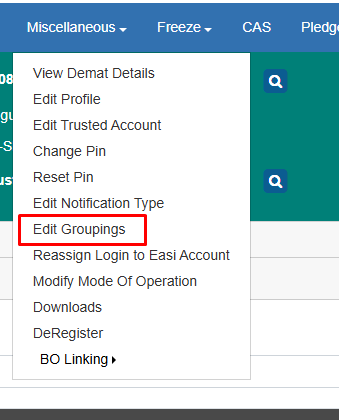
Yes, you can add additional Demat accounts from your main login using the Edit Groupings option.
Edit Groupings is a facility provided by CDSL that allows a Beneficial Owner (BO) to group multiple Demat accounts under a single Easi/Easiest login. This enables you to view the holdings and transaction details of all grouped accounts through one login.
A BO can group a maximum of 8 additional BOIDs with the primary login, either during registration or later using the Edit Groupings option.
After adding the accounts, a Grouping Registration Form will be generated. The form must be signed by the account holder(s) and submitted to the respective DP for authentication.
Once the DP authenticates the request, the grouped accounts will be activated and can be accessed through the same login.
@sunils Thank You .
I have added these BOID , using Edit Grouping and status showing as Authenticated By DP . But Grouping Registration Form not generated .
These BOID like Zerodha secondary BOID added previously as beneficiary BOID
If you have already added the account and its status shows “Authenticated By DP”, you will be able to select that account from the Home page. Click the search icon next to the BO ID, select the required account, and the system will navigate to the respective BO details.