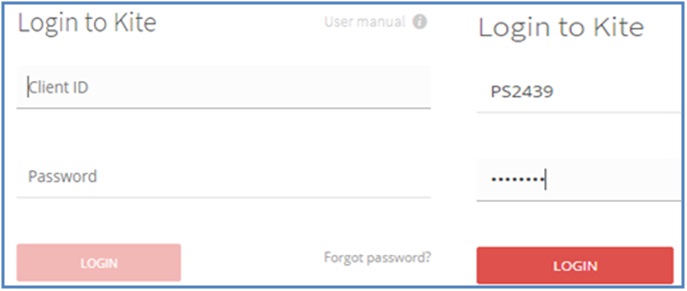
To log in to kite.zerodha.com, the user must provide his Client ID and password in the Kite Web Log in page.
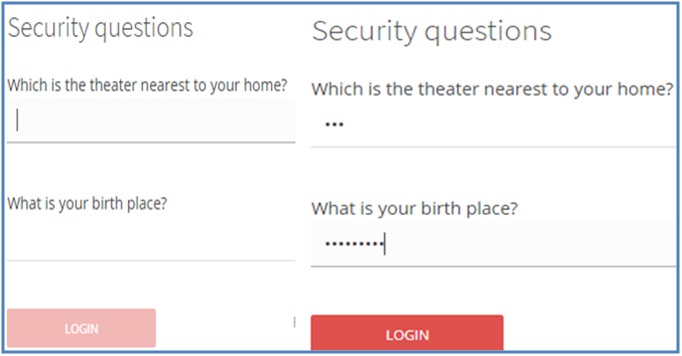
Next, in order to make sure that the security of the user interface is not compromised, the Kite System asks the person to provide answers to two security questions. As soon as these two steps are completed, the user is taken to the dashboard which immediately allows the user to start trading in equity shares, stock options, stock futures, index options and index futures.
STEP 1: Log-in to Zerodha Kite Mobile cum Desktop Trading Platform at https://kite.zerodha.com/ and provide your Client ID and Password in the Login to Kite Window.
STEP 2: Answer two security questions asked to confirm your log-in credentials as shown below:
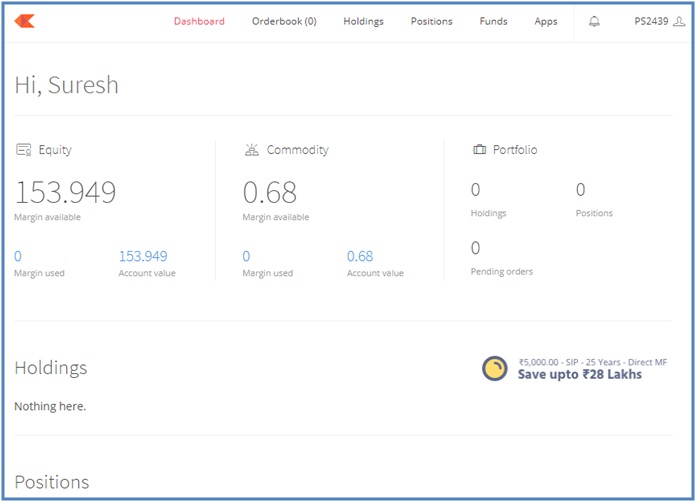
Once you click on the LOGIN button in the Security Questions window, Kite will take you to the following Dashboard Trading window, which will contain the Market Watch window on the left hand side and the Portfolio Window consisting of eight tabs namely (1) Dashboard (2) Order Book (3) Holdings (4) Positions (5) Funds (6) Apps (7) Notifications and (8) Client ID Number on the right hand.
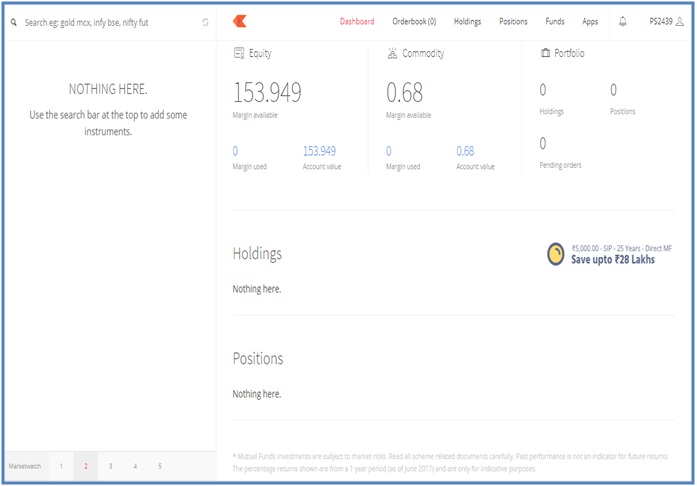
By taking the cursor immediately before Search (Search eg: gold mcx, infybse, nifty fut) at the top of the Market Watch window, the trader can add indices and equity shares that he is interested in to keep a watch on them or interested to buy or sell them.
For Example, one can create the following Market Watch consisting of twelve rows:
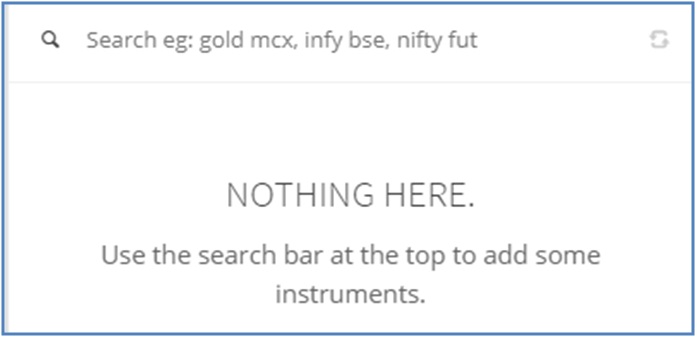
To add BSE SENSEX INDEX, type SENSEX before Search, select SENSEX from a list of Indices that show up and click on + to add BSE SENSEX INDEX as the first row in Market Watch columns. Similarly type whichever Index or Equity Share before Search, select the concerned Index or Equity Share from the lists that show up and click on + to add them to the Market Watch columns. Use up and down arrows to scroll within the Market Watch lists. Note that every index or equity share added to the Market Search is auto saved and will be visible until you delete them from the Market Watch lists.
(1) BSE SENSEX INDEX (Percent Increase or Decrease and Last Traded Price, also known as LTP)
(2) NSE NIFTY INDEX (Percent Increase or Decrease and Last Traded Price, also known as LTP)
(2) NSE Nifty October 2017 Index FUTURE (Percent Increase or Decrease and Last Traded Price, also known as LTP)
(3) NSE Nifty IT October 2017 Index FUTURE (Percent Increase or Decrease and Last Traded Price, also known as LTP)
(4) NSE Bank Nifty October 2017 Index FUTURE (Percent Increase or Decrease and Last Traded Price, also known as LTP)
(5) RELIANCE INDUSTRIES (Percent Increase or Decrease and Last Traded Price, also known as LTP)
(6) INFOSYS (Percent Increase or Decrease and Last Traded Price, also known as LTP)
(7) ITC (Percent Increase or Decrease and Last Traded Price, also known as LTP)
(8) STATE BANK OF INDIA (Percent Increase or Decrease and Last Traded Price, also known as LTP)
(9) HDFC BANK (Percent Increase or Decrease and Last Traded Price, also known as LTP)
(10) ICICI BANK (Percent Increase or Decrease and Last Traded Price, also known as LTP)
(11) AXIS BANK (Percent Increase or Decrease and Last Traded Price, also known as LTP)
(12) TVS MOTORS (Percent Increase or Decrease and Last Traded Price, also known as LTP)
(a)
(b
)

(C) Click on the Tab which says + to add RELIANCE to the Market Watch window.
(D) Add other shares and indices that you are interested to the Market Watch window using the previous A to C steps for each new addition. An example of the Market Watch window is shown below.
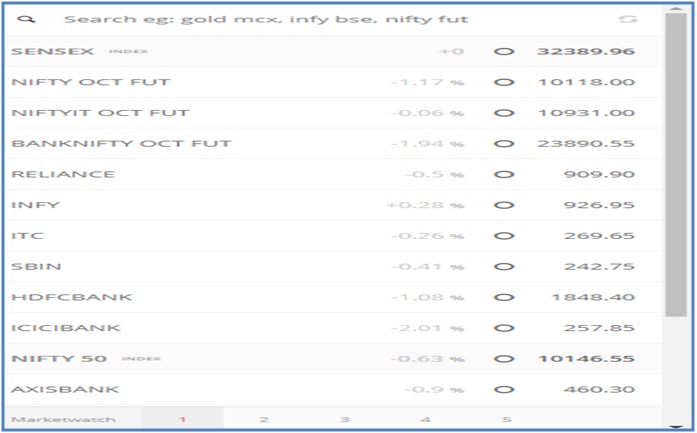
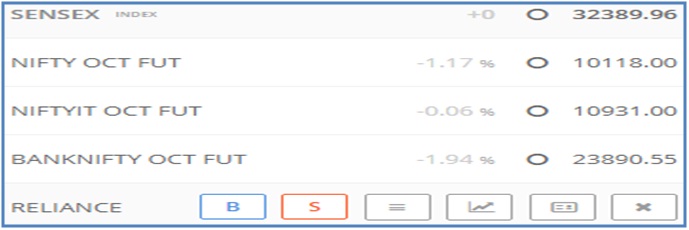
Each of the above twelve rows will display the following six tabs:
(1) BUY (B)
(2) SELL (S)
(3) MARKET DEPTH (D)
(4) CHART (C)
(5) STOCK WIDGET (W)
(6) DELETE (DEL)
STEP 3A: One can place buy or sell orders for equity shares (either for delivery or intraday square-off) or stock futures and index futures or stock options or index options using shortcut keys: B (to place a Buy order) and S (to place a Sell order).
The trader can place buy or sell orders for equity shares or F&O using the Market Watch or Stock Watch portion of the dashboard. Note that that about 100 shares or derivatives can be included in the five columns of the Market Watch window, with each column permitting you to include 20 entries each.
Move the cursor over the scrip you want to buy or sell (for example, Reliance) on the Market Watch-list to initiate the buy or sell orders in the Order Window. Now, the following window will show up, which will help you to buy or sell Reliance shares.
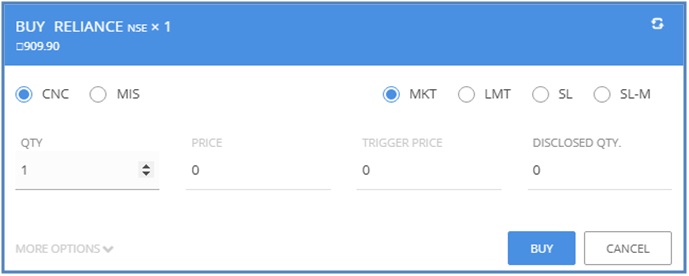
Click on the Tab B to get the following buy order window, which will provide access to the following pieces of information:
Click on MORE OPTIONS V to get the Extended Buy Order window.
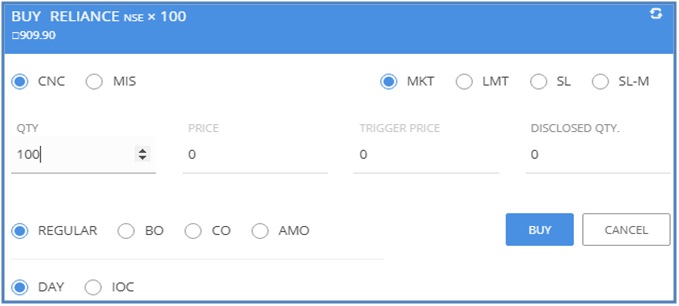
FIRST ROW: The first row will show the following details: BUY RELIANCE NSE x 100 shares at Rs. 909.90 each.
SECOND ROW: The second row will have two sets of radio buttons; the first set will contain two radio buttons for selecting one of the two product types and the second set will contain four radio buttons for selecting one of the four order types.
(a) Two Radio Buttons Which Allow the Trader to Choose One of the Two Product Types, namely (i) CNC (Cash and Carry) Product Type and (ii) MIS (Margin intraday square-off) Product Type.
Cash and Carry or CNC radio button must be selected if the trader wants to buy equity shares on delivery basis. In this case, the trader must pay the entire 100 percent of the value of the buy order (100% money) in order to execute his buy order for stocks for CNC or for delivery.
Margin Intraday Square-off or MIS radio button must be selected if the trader wants to buy equity shares or options or futures in stock equity derivatives or index derivatives for intraday trades in equity shares, stock F&O and index F&O.
Trade using MIS helps the trade to secure additional leverage/margin: (a) Upto 10 times intraday leverage for equity; (b) Upto 3 times for futures; (c) Upto 3 times for options shorting and (d) No leverage for option buying.
It is very important for traders to be aware that all MIS positions are auto-squared off 10 to 15 minutes before close of markets or when losses exceed 50% of margin or based on market conditions.
(b) Four Radio Buttons Which Allow the Trader to Choose One of the Four Buy Order Types, namely (i) Market Order (ii) Limit Order (iii) Stop Loss Order and (iv) Stop Loss at Market Price Order.
THIRD ROW: The third row will have four blanks, namely those of (i) QTY (Quantity of Shares or Options or Futures) (ii) Price (iii) Trigger Price and (iv) Disclosed QTY or Disclosed Quantity.
FIFTY ROW: The fifth row will have two radio buttons, one for DAY and another for IOC, which are two types of regular orders with time validity. A trader must select the DAY radio button if he or she wants to use day orders only which are valid only until the end of the day and this option is selected by default. Alternatively, the trader can select the IOC (IMMEDIATE OR CANCE) for orders to be cancelled if not filled completely immediately.
FOURTH ROW: The fourth row will have four radio buttons and two rectangular buttons:
The four radio buttons are: (i) REGULAR (ii) BO (iii) CO and (iv) AMO.
(i) REGULAR refers to Regular orders with time validity: Day orders for orders to be valid till end of day (selected by default) and IOC (Immediate or cancel) for orders to be cancelled if not filled completely immediately.
An example of a Regular Order:

(ii) BO refers to Bracket Orders. Kite allows the traders to place BO for retail with an option of Trailing Stop Loss, for both Equity Shares and Futures and Options. BO allows the trader to enter a new buy or sell position along with a target/exit and a stoploss order. As soon as the main order is executed, Kite will also simultaneously place two more orders (the first order is for taking profits and the other is for stopping losses). If the profit taking order gets executed, the stop loss order gets cancelled automatically. Alternatively, if the stop loss order is executed, the profit taking order gets cancelled automatically. Another feature of a BO (Bracket Order) is that it allows the trader to place either a fixed stop-loss order or a trailing stop-loss order. The advantage of this step is that if the contract/stock moves in the trader’s direction by a particular number of ticks, the stop-loss will go up or come down automatically based on whether the trader is long or short with that contract or stock. Bracket Orders are available only for Equity, Futures & Options and Currency and not allowed for commodities. One important thing to note about BO is that the trader cannot carry forward bracket order positions to the next day because Bracket Orders are intraday orders only and all Bracket Order buy and sell positions are squared off around 3.20 PM every trading day.
An example of a Bracket Order:

To know more about Bracket Orders, visit https://zerodha.com/z-connect/tradezerodha/zerodha-trader-software-version/bracket-orders-trailing-stoploss-sl
(iii) CO refers to Cover Orders. Kite allows the trader to place Cover Orders for NSE Equity, NSE F&O, NSE Currency and MCX Commodity trades. CO is a good trading tool for Intraday Traders since all cover orders are squared off automatically by the Kite system around 3:20 PM every trading day. A Cover Order is a buy or a sell market order with an accompanying, compulsory stop loss order, in a specified range. By its very nature, every cover order leads to a reduction in risk and simultaneous, automatic reduction in margin requirement.
An example of a COVER Order:

To know more about Cover Orders, visit https://zerodha.com/z-connect/tradezerodha/zerodha-trader-software-version/cover-orders-for-higher-leverage
(iv) AMO refers to After Market Orders which are available on all the exchanges. Place orders for the next trading day the previous day itself. Whoever wants to place an after-market order can do so from 4:00 PM to 8:59 AM for equity shares, from 4:00 PM to 9:09 AM for Futures & Options and from 4:00 PM the previous day to 8:59 AM for Commodity derivatives. In order to place an AMO, click on the Buy (B) or Sell (S) for the scrip, click on “More options” at the bottom of the order window and select “AMO”.
An example of an After-Market Order:

To know more about AMO, visit Pre-market/Post-market/After-market Orders – Z-Connect by Zerodha Z-Connect by Zerodha
The two rectangular buttons are: (i) BUY and (ii) CANCEL.
To place the buy order, the trader must click on the BUY rectangular button and if he does not want to buy, he must click on the CANCEL rectangular button.
If someone wants to buy shares of Reliance Industries, one must click on BUY (B) tab next to RELIANCE INDUSTRIES and use one of the four buy order types to place the buy order:
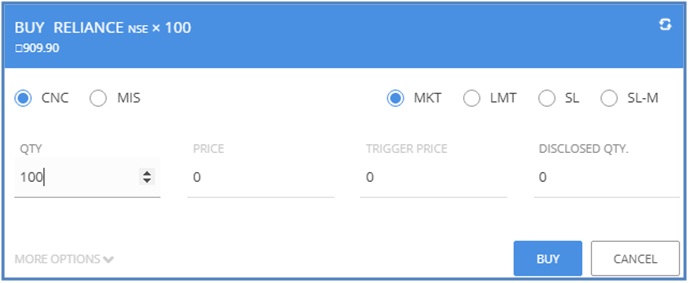
(1) BUY ORDER AT MARKET PRICE: In this type of order, the trader has to fill one blank or provide just one piece of information: (a) Quantity or Number of Shares to Buy.
This category allows the trader to place an order to buy or sell at the best available price.
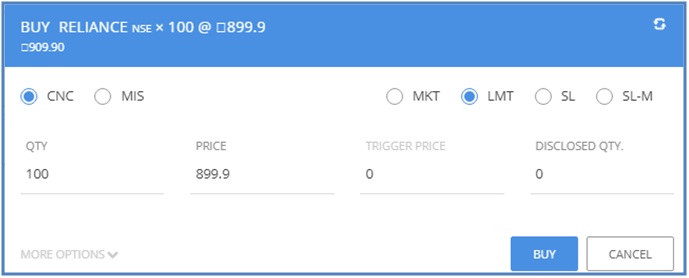
(2) BUY ORDER AT LIMIT PRICE: In this type of order, the trader has to fill three blanks or provide just three pieces of information: (a) Quantity or Number of Shares to Buy, (b) Limit Price at which he wants to buy and (c) Disclosed Quantity.
This category allows the trader to place buy or sell order at a predetermined price.
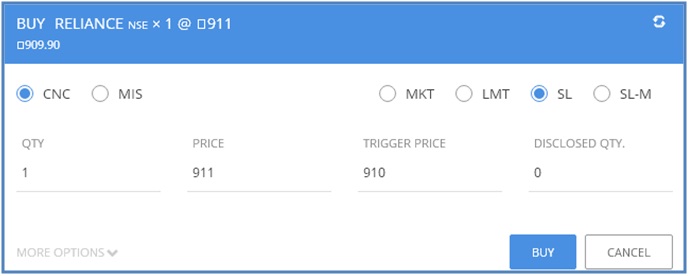
(3) BUY ORDER AT STOP LOSS PRICE: In this type of order, the trader has to fill four blanks or provide just four pieces of information: (a) Quantity or Number of Shares to Buy, (b) Limit Price at which he wants to buy, (c) Stop Loss Trigger Price and (d) Disclosed Quantity.
This category allows the trader to place a predetermined loss booking order at a trigger price, which helps the trader to enter a fresh buy above the current market price when the trigger price is hit or sell below the current market price when the trigger price is hit.
A trader must use this category if limit order needs to be sent when the trigger price is hit.
(4) BUY ORDER AT STOP LOSS AT MARKET PRICE: In this type of order, the trader has to fill three blanks or provide just three pieces of information: (a) Quantity or Number of Shares to Buy, (b) Stop Loss- Market Trigger Price and (c) Disclosed Quantity.
A trader must use this type of order if a market price order were to be sent when the trigger price is hit.
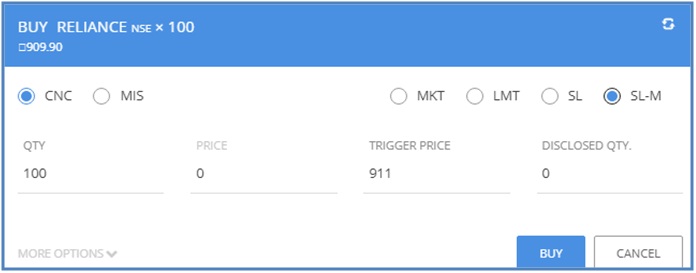
For guaranteed execution, always use SL-M. To know more on stop loss, please visit: https://zerodha.com/z-connect/tradezerodha/zerodha-trader-software-version/stop-loss-orders-limit-market
If someone wants to sell shares of Infosys, one must click on SELL (S) tab next to INFOSYS and use one of the four sell order types to place the sell order:
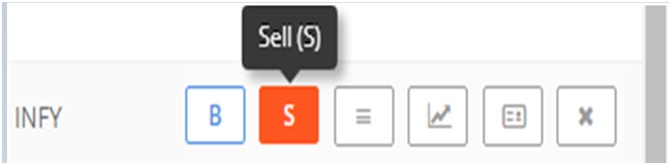
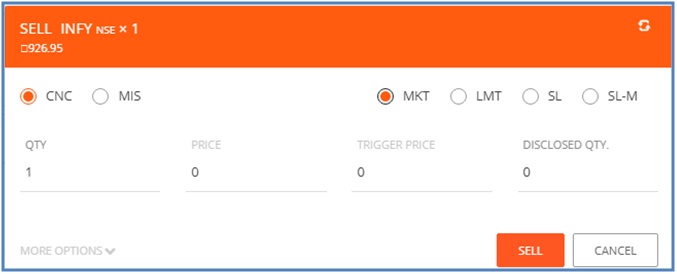
(1) SELL ORDER AT MARKET PRICE: In this type of order, the trader has to fill one blank or provide just one piece of information: (a) Quantity or Number of Shares to Sell.
This category allows the trader to place an order to buy or sell at the best available price.
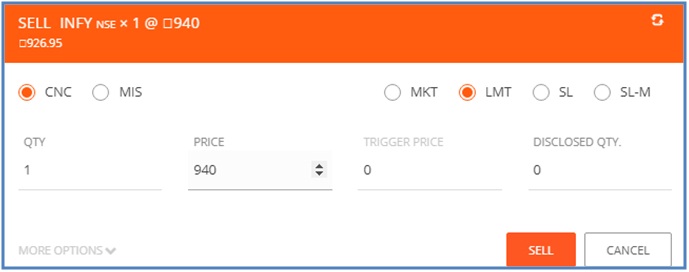
(2) SELL ORDER AT LIMIT PRICE: In this type of order, the trader has to fill three blanks or provide just three pieces of information: (a) Quantity or Number of Shares to Sell, (b) Limit Price at which he wants to sell and (c) Disclosed Quantity.
This category allows the trader to place buy or sell order at a predetermined price.
(3) SELL ORDER AT STOP LOSS PRICE: In this type of order, the trader has to fill four blanks or provide just four pieces of information: (a) Quantity or Number of Shares to Sell, (b) Limit Price at which he wants to sell, (c) Stop Loss Trigger Price and (d) Disclosed Quantity.
This category allows the trader to place a predetermined loss booking order at a trigger price, which helps the trader to enter a fresh buy above the current market price when the trigger price is hit or sell below the current market price when the trigger price is hit.
A trader must use this category if limit order needs to be sent when the trigger price is hit.
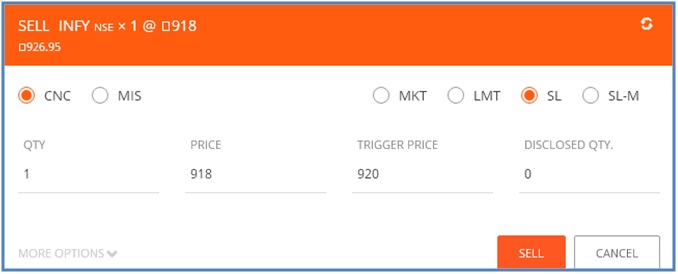
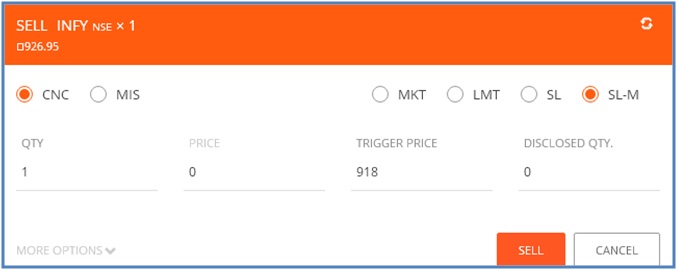
(4) SELL ORDER AT STOP LOSS AT MARKET PRICE: In this type of order, the trader has to fill three blanks or provide just three pieces of information: (a) Quantity or Number of Shares to Sell, (b) Stop Loss- Market Trigger Price and (c) Disclosed Quantity.
A trader must use this type of order if a market price order were to be sent when the trigger price is hit.
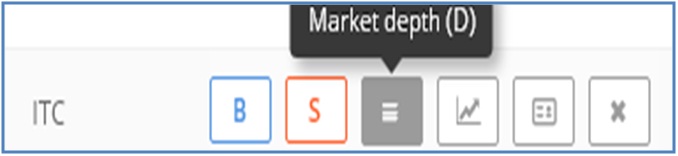
If someone wants to watch the Market Depth of ITC, one must click on MARKET DEPTH (D) tab next to ITC and get the following six pieces of information about ITC:
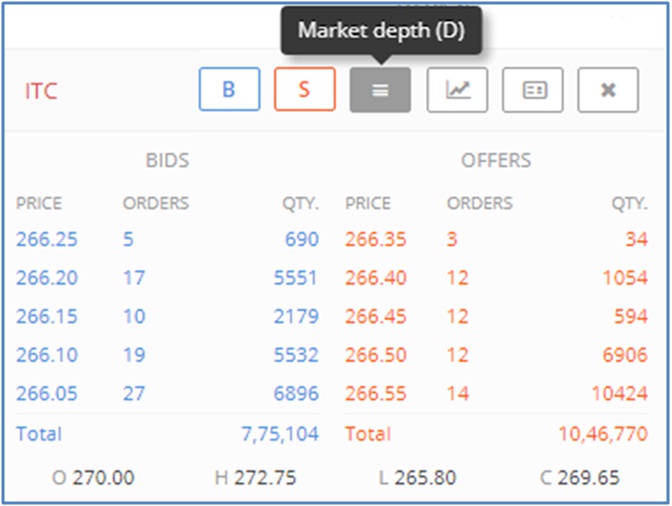
(1) Five Rows of Highest Bids with each row providing three pieces of information: (a) Bid Price (b) No of orders at this bid price and (c) Quantity Demanded at this bid price.
(2) Five Rows of Highest Offers with each row providing three pieces of information: (a) Offer Price (b) No of orders at this offer price and (c) Quantity Supplied at this offer price.
(3) Open Price at the start of the trading session
(4) Highest Price Recorded during the trading session
(5) Lowest Price Recorded during the trading session
(6) Closing Price at the end of the trading session
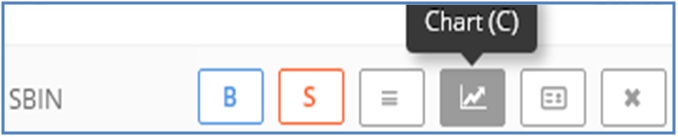
If someone wants to watch the Chart of State Bank of India, one must click on CHART (C) tab next to STATE BANK OF INDIA and get the following six pieces of information about SBI
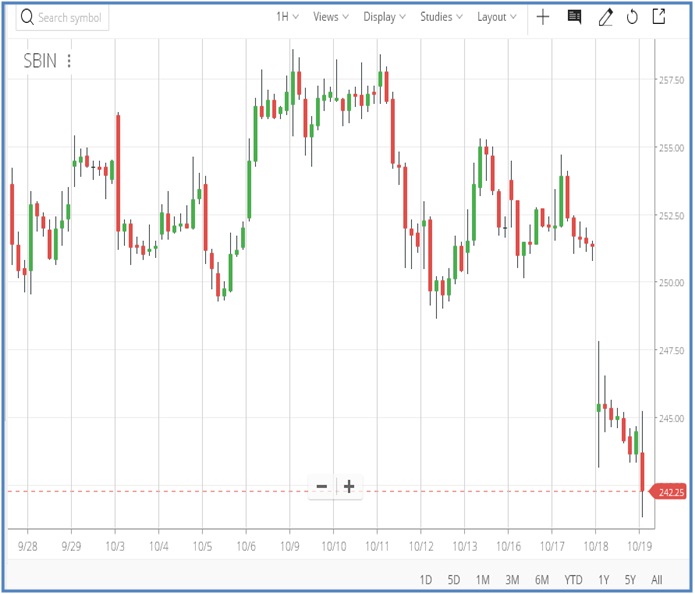
(1) Duration: It can be one of the following ten periods of time: 1 Minute, 3 Minutes, 5 Minutes, 10 Minutes, 15 Minutes, 30 Minutes, 1 Hour, 1 Day, 1 Week and 1 Month
(2) SAVED VIEWS OF THE CHARTS
(3) CHART DISPLAY STYLES: It can be one of the following eight styles: Candle, Bar, Colored Bar, Line, Hollow Candle, Mountain, Baseline and Volume Candle (other types are also available: HeikinAshi, Kagi, Line Break, Renko, Renge Bars, Point and Finger, Log Scale Preference, Day Theme and Night Theme)
(4) STUDIES: Click on studies to add indicators on the chart. The following indicators are available: ADX/DMS, ATR Bands, ATR Trailing Stops, Accumulation/Distribution, Accumulative Swing Index, Alligator, Choppiness Index, Correlation Coefficient, Price Oscillator, RSI, Standard Deviation, Time Series Forecast, Volume Chart, ZigZag, etc. By default, indicators are applied on closing price of the candle. This could be changed to open, high, low, and even over another indicator that is already added on the chart.
(5) LAYOUT
Along with facility for creating market watch, the Kite Web Dashboard provides access to seven different resources. These are (1) Order Book (2) Holdings (3) Positions (4) Funds (5) Apps (6) Notifications and (7) User Resources.
(1) Order Book: It provides information about open orders and executed orders.
(2) Holdings: It provides information about stocks bought as CNC (equity delivery). These stocks start showing up in holdings from the next trading day (shows up in position tab on the day of purchase). But settlement cycle for stocks in India is 2 days (T+2), so stocks will be in the DEMAT Account only after two days from purchasing. Until stocks are delivered, they show up as T1 holding.
(3) Positions: It allows the trader to track, monitor and act on all Futures & Options and intraday equity positions in a single window. It is important to know that MIS (Intraday), BO (Bracket), and CO (Cover) are intraday products and are auto-squared off before end of day. Three things are important to find out about positions: (a) MIS (Intraday positions) can be converted to NRML/CNC (Overnight/delivery) by clicking on “>” and (b) Brackets and covers can’t be converted using position conversion to CNC/NRML. BO/CO positions can be exited and new CNC/NRML positions can be taken to carry forward to the next day and (c) One can exit positions by placing an opposite order for the position held.
(4) Funds: It allows the trader to add funds from his individual bank account to his Zerodha Equity/Derivative/Currency Segment or to his Zerodha Commodities Segment and to withdraw funds from his Equity/Derivative/Currency Segment or to his Commodities Segment. Please note the following four pieces of information about fund withdrawal policy of Zerodha: (a) All equity fund withdrawal requests put before 7:30 PM are processed the same day and the trader shall receive credit of the funds within 24 hours (b) All commodity fund withdrawal requests put before 9.00 AM is processed the same day (c) Second and Fourth Saturdays are bank holidays and therefore, all withdrawal requests placed on 2nd and 4th Fridays before 7.30pm will be credited on Monday/next trading day and (d) All withdrawal requests placed on Saturdays, Sundays and post 7.30pm on Fridays will be processed only on Monday/next trading day and will be credited to the bank account a day after.
(5) Apps: It provides information about Kite Connect apps used by the trader.
(6) Notifications: The trader will receive notifications regarding his trading activities for the day. This tab shows order updates - executed, cancelled or rejected.
Finally, if the trader needs support, the following support is provided by Zerodha:
(a) Create a ticket at http://support.zerodha.com/
(b) E-Mail to Zerodha Support Team at Email: [email protected]
(c) If you want to talk to a member of Zerodha Support Team, call at 080-40402020.
(d) If you want to visit the Zerodha Headquarters, the address is as follows: 153/154 4th Cross Dollars Colony. Opposite to Clarence Public School, J.P Nagar 4th Phase, Bangalore – 560078
(e) If you want to visit over 100 branches and partner offices of Zerodha, please visit: https://zerodha.com/contact-us.
NOTE 1:
STOCK TRADING IN INDIA
Stock Trading in India refers to trading in equities, derivatives, currencies and commodities, in Indian Stock Exchanges such as Bombay Stock Exchange (BSE), National Stock Exchange (NSE), Multi Commodity Exchange (MCX) and Metropolitan Stock Exchange (MSE).
BSE, which has its headquarters in Mumbai in Maharashtra, was founded in 1875 by Premchand Roychand; its current Chief Executive Officer (CEO) is Ashish Kumar Manilal Chauhan. NSE, also headquartered in Mumbai, was established in 1992 as India’s first demutualized electronic exchange in 1992; its current Managing Director and CEO is Vikram Limaye. MCX, also based in Mumbai, was founded on November 10, 2003 and its current MD and CEO is Mrugank Paranjape, Chairman is Saurabh Chandra and President is P.K. Singha. Finally, MSE, which also operates from Mumbai, came into existence in 2008 and its MD and CEO is Udai Kumar and its Chairman is Ashima Goyal.
Whoever wants to trade in Indian Stock Exchanges must have a Permanent Account Number (PAN), a mobile number, a bank account, a trading account and a demat account. It is also beneficial to link one’s Aadhaar Number to one’s bank account number and one’s mobile numbers. One can open both trading and demat accounts with Zerodha stock broking firm instantly if they have an Aadhaar number. They can open their trading and demat accounts at Signup and open a Zerodha trading and demat account online and start investing – Zerodha just by proving three pieces of information about themselves: (1) Full Name (2) Mobile Number and (3) E-Mail Address.
NOTE 2:
ZERODHA IS A GREAT FRIEND OF STOCK TRADERS IN INDIA
The stock broking firm which has found great favour with the Indian Stock traders and helped them save huge sums of brokerage amounts by charging the bare minimum brokerage on all their stock, derivative, currency and commodity trading transactions is Zerodha, a stock broking firm headquartered in Bangalore and which also operates from all the major cities in India.
Zerodha has a growing community of over 5 lakh traders and it chages ₹0 on equity investments and a flat Rs. 20 per executed trading order on intraday trades with the Indian Stock Exchanges. One can be rest assured that Zerodha does not bother the traders with any other charges or any hidden or extra transaction fees.
Zerodha, renowned for its discount pricing model, the most user friendly trading interfaces and innovative use of technology, is a member of all the top four Indian Stock Exchanges namely NSE, BSE, MCX and MCX-SX. As on Wednesday, October 18, 2017, Zerodha enjoys the unique distinction of being the largest discount broker in India, contributing about 5% of retail trading volumes on Indian stock exchanges and generating over $2 billion of trading turnovers every trading day.
Zerodha, the most friendly stock broking firm of the Indian Stock traders, was founded in Bangalore in 2010 by Nithin Kamath, who has also been serving as its Chief Executive Officer (CEO) from the start.
Recognizing Nithin Kamat’s unparalled contributions for coming to the rescue of the Indian Stock traders by saving them huge sums of brokerage amounts earlier paid and for facilitating the enrichment of a large number of Indian Stock trade, the Confederation of Indian Industry awarded Nithin Kamath, the founder and CEO of Zerodha, the 2013 Confederation of Indian Industry (CII) Emerging Entrepreneur Award for pioneering the discount broking model in India.
Being renowned for its ceaseless efforts in being a true friend of the stock traders in India, Zerodha has won several accolades including the BSE-D&B “Emerging Equity Broking House Award” in 2014 and 2015 respectively and the “Economic Times Startup Awards 2016” in the “Bootstrap Champ” category.
Have a great time trading in Indian Stock, Derivative, Commodity and Currency Exchanges!
Best wishes to every stock trader in India!